Signing asset policies🔗
Asset policies control access to your data and are stored on the Federation Orchestrator. The Apheris product offers the option for you to sign those policies if this option has been selected for this Compute Gateway upon deployment.
Signing is a cryptographic operation that ensures the policies used on your Compute Gateway cannot be tampered with.
Requirements for using asset policy signing🔗
- You have a signing key
- The certificate to verify signatures is configured on the Compute Gateway that contains the dataset
- You have the
Ownerrole within your organization
Signing an asset policy🔗
Signing steps🔗
- You use your private signing key (existing or freshly generated) to create the digital signature in the Governance Portal.
- The policy and signature are sent to the Orchestrator via the Governance Portal.
- Upon evaluation of an asset policy, the Compute Gateway retrieves the asset policy and its signature from the Orchestrator.
- The Gateway verifies the integrity of the asset policy by verifying the signature with the respective certificate.
Obtaining Signing Keys🔗
We require signing keys to be RSA in PKCS 8 format, and the Compute Gateway requires an X.509 certificate to verify signatures. You can create both with OpenSSL:
openssl genpkey -algorithm RSA -pkeyopt rsa_keygen_bits:2048 -out private-key-pkcs8.pem
openssl req -new -x509 -key private-key-pkcs8.pem -out certificate.pem -days 3650 -subj "/CN=asset-policy-signing"
Then:
- Import
private-key-pkcs8.peminto the Governance Portal (in-browser) to sign asset policies - Configure
certificate.pemon the Compute Gateway so it can verify signatures
Viewing Signatures in the Governance Portal🔗
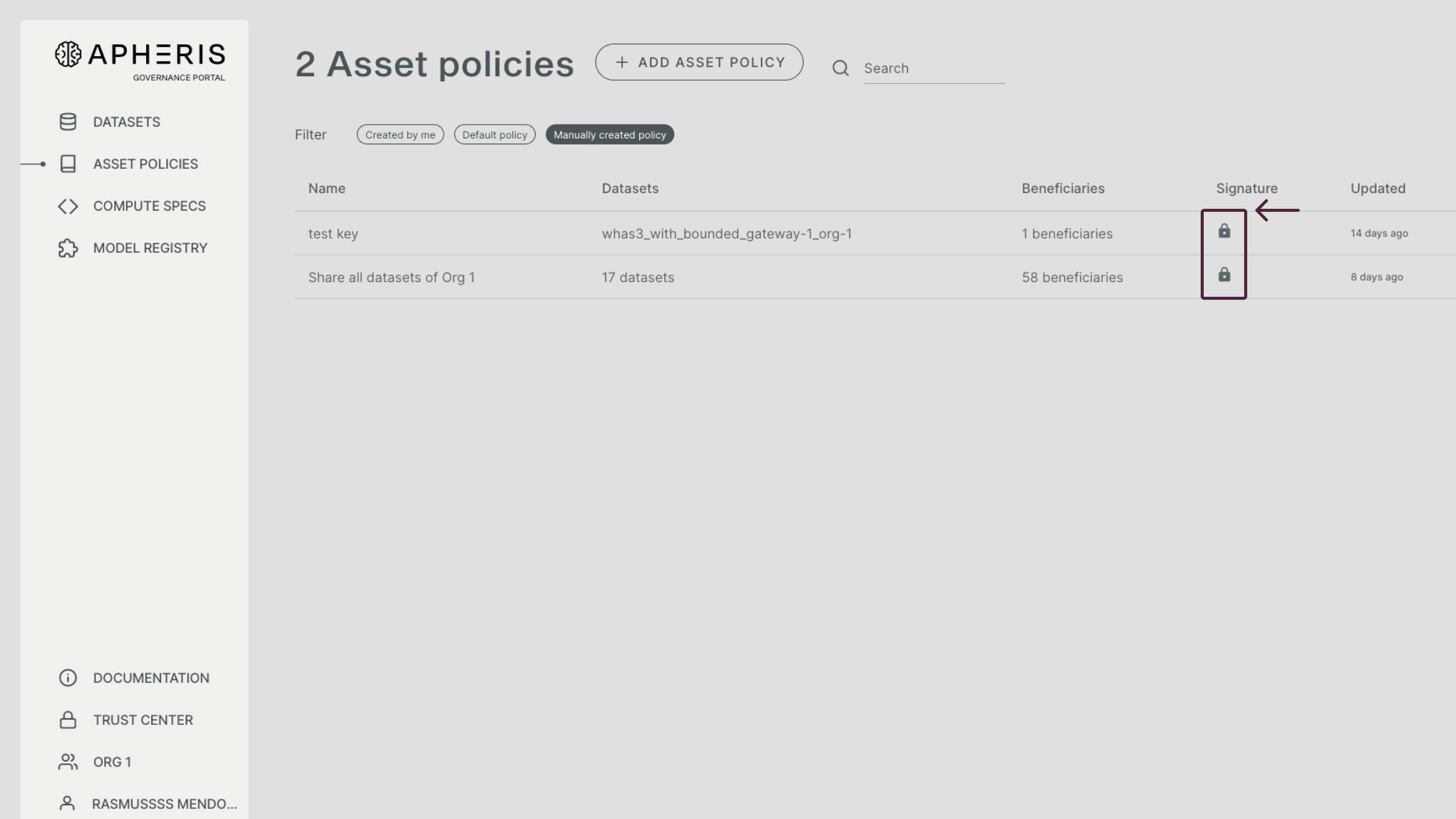
Navigate to the Asset Policy Overview tab.
Within the overview tab, a closed black lock icon will indicate a properly signed asset policy (see image below).
If an asset has not been properly signed, you will see an open lock icon colored red.
Signing via the Governance Portal🔗
The most convenient way is to sign via the “in the browser” option. For this option, you must import your private key into the Apheris Governance Portal. The private key is stored via the native web crypto API in a read-only storage. It is never uploaded to a server.
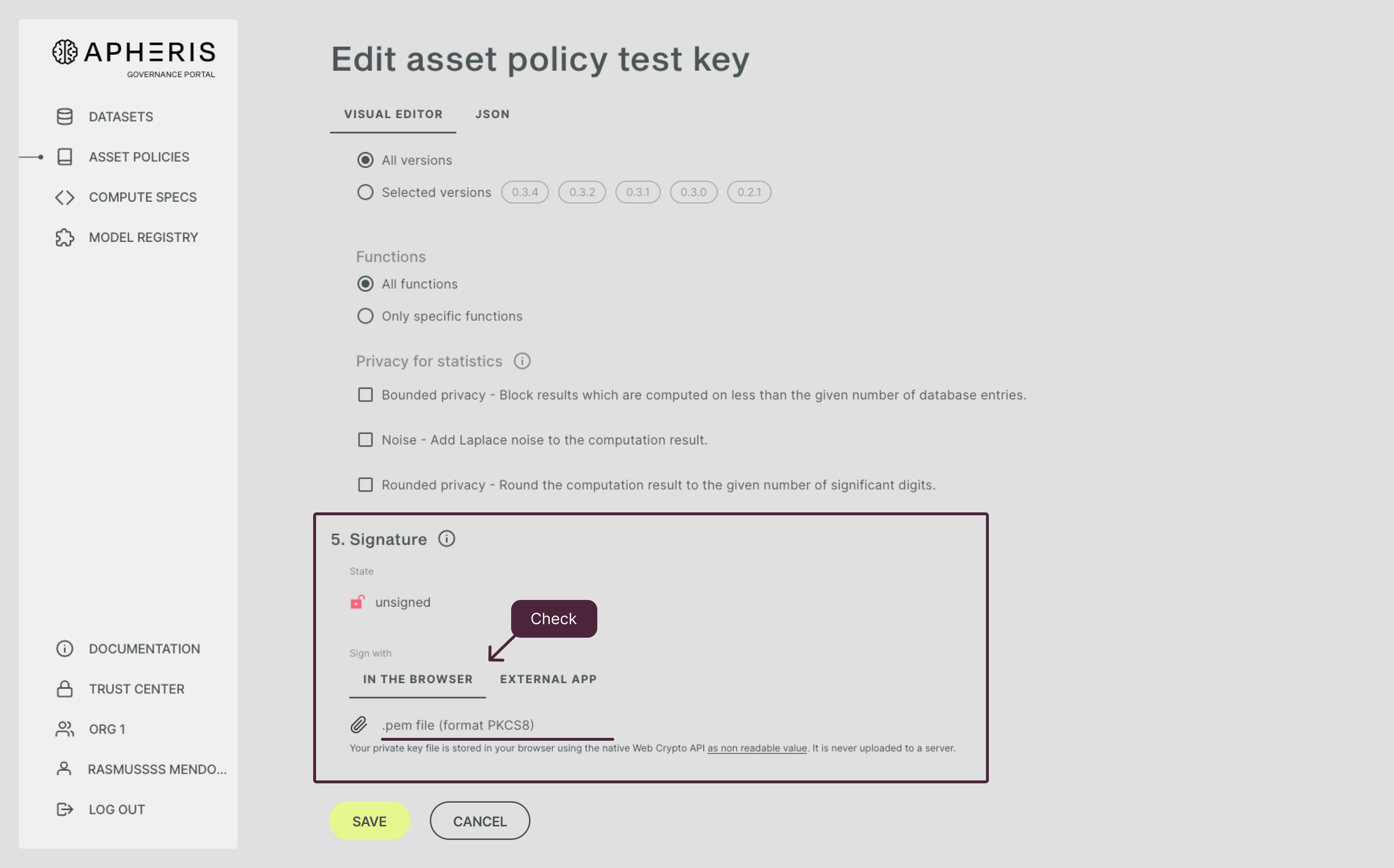
The key will be stored in your browser until you delete it. You can sign multiple asset policies without importing the key again. Please make sure that your browser is secure when using this option.
Updating signed asset policies🔗
You can update signed asset policies at any time. Asset policies will be signed automatically once you have imported your private key into the Governance Portal.
Signing for organizations with multiple gateways🔗
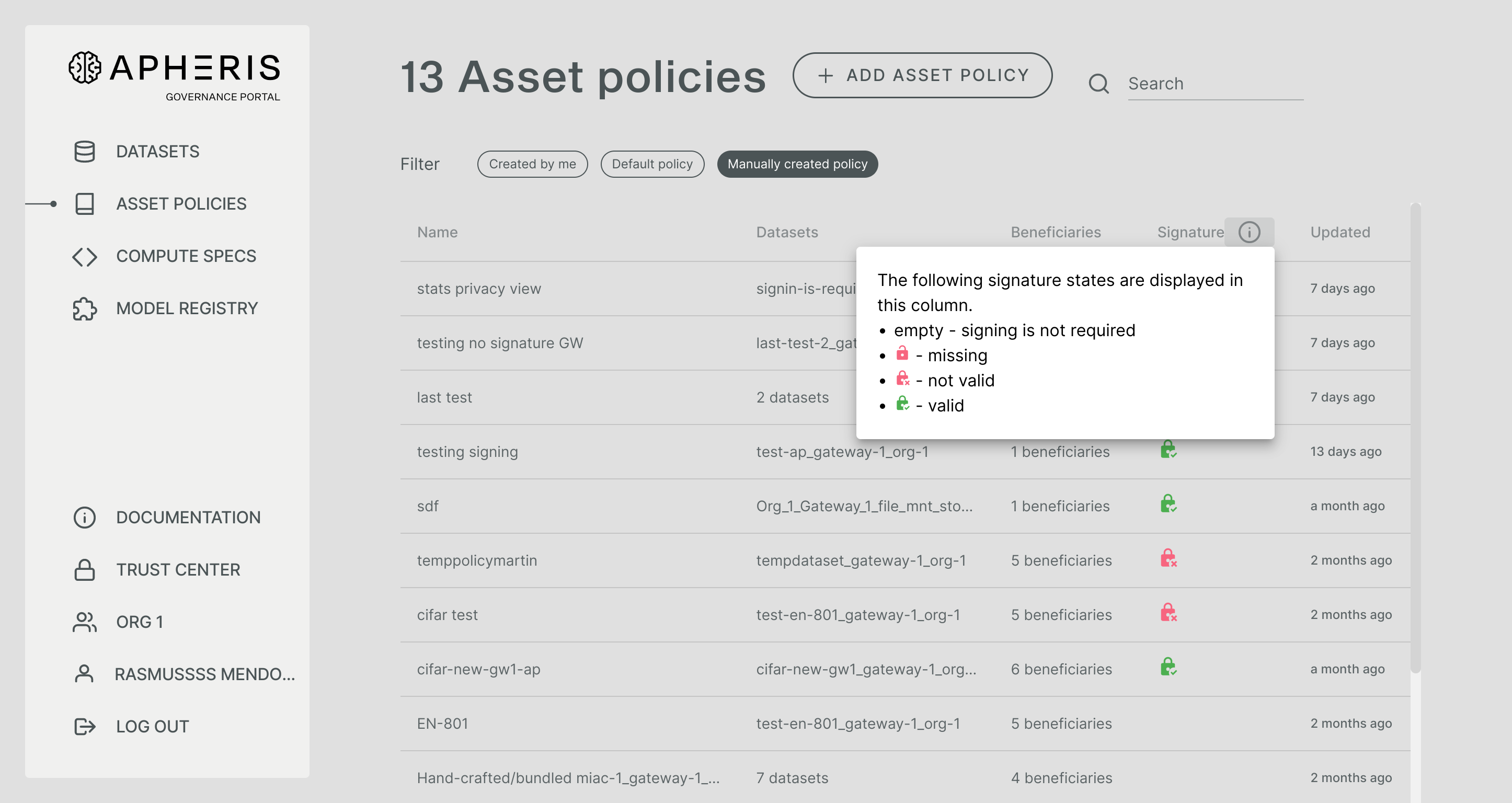
When your organization has multiple gateways set up that have mixed requirements for signing asset policies your asset policies can have the following status:
- signing is not required
- the signature is missing
- the signature is not valid
- the signature is valid
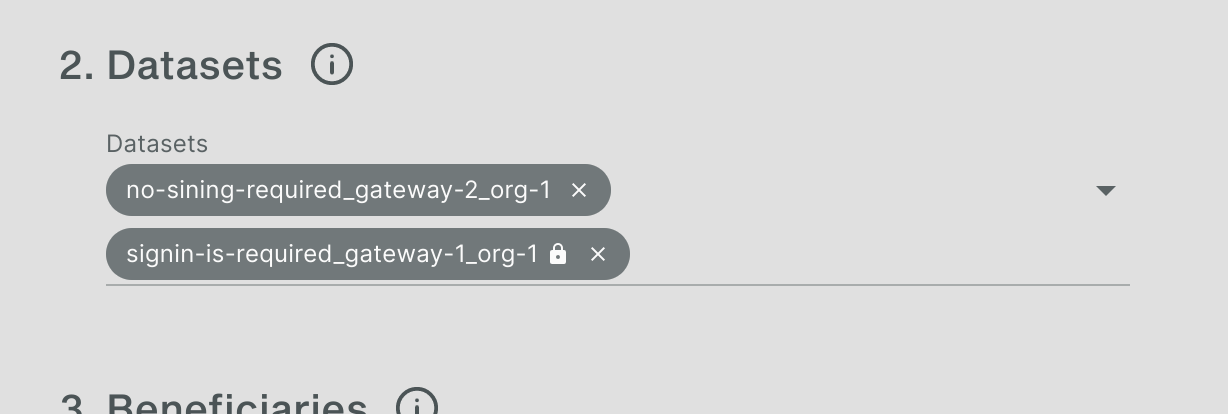
When selecting datasets, the lock icon indicates if a dataset is located on a gateway that requires signing. When such a dataset is added, the signing widget will appear below.