Downloading Artifacts in the Governance Portal🔗
Use the Apheris Governance Portal to browse, filter, and download artifacts you can access (owned or shared).
Managing Access
The Governance Portal is for viewing and downloading artifacts. To grant or revoke access (share artifacts), use the Apheris CLI.
What You Can Do🔗
The Artifact page lets you:
- View all artifacts you have access to (owned or shared with you)
- Filter artifacts by creator and type
- Search for specific artifacts
- View details including files and metadata
- Download artifact files using pre-signed URLs
What You Cannot Do🔗
The Governance Portal does NOT support:
- Granting access to artifacts (use CLI:
apheris artifacts grant) - Revoking access grants (use CLI:
apheris artifacts revoke) - Creating artifacts (done automatically during computation execution)
Accessing the Artifacts Page🔗
- Log into the Apheris Governance Portal (Auth0 Apheris login)
- Navigate to Artifacts from the main navigation menu
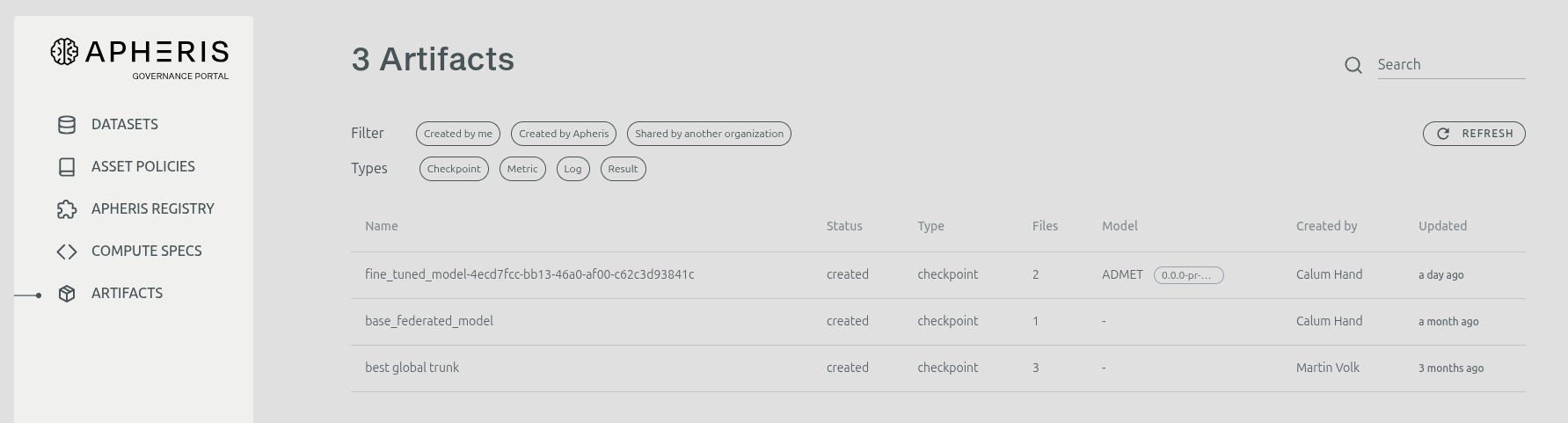
- You'll see a list of all artifacts you have access to
Understanding the Artifacts List🔗
The artifacts list displays key information about each artifact:
| Column | Description |
|---|---|
| Name | Human-readable name of the artifact |
| Status | Current status (e.g., "active") |
| Type | Artifact type (checkpoint, metric, log, result) |
| Files | Number of files attached to the artifact |
| Model | Associated model ID and version (if provided) |
| Created by | User who created the artifact |
| Updated | Last update timestamp |
Filtering Artifacts🔗
Filter by Creator🔗
Use the creator filters to view artifacts from different sources:
- Created by me: Artifacts you created
- Created by [Your Organization]: Artifacts created by anyone in your organization
- Shared by another organization: Artifacts that others have shared with you
You can select multiple filters to combine them.
Filter by Type🔗
Filter artifacts by their type:
- Checkpoint: Model checkpoints and training states
- Metric: Performance measurements and evaluation results
- Log: Execution logs and debugging information
- Result: Final outputs and generated data
Select multiple types to view artifacts of different kinds simultaneously.
Search Artifacts🔗
Use the search bar in the top right to find specific artifacts by:
- Artifact ID
- Artifact name
- Status
- Type
- Job ID
The search uses fuzzy matching to help you find artifacts even with partial information.
Viewing Artifact Details🔗
To view detailed information about an artifact:
- Click on any artifact row in the list
- You'll be taken to the artifact details page
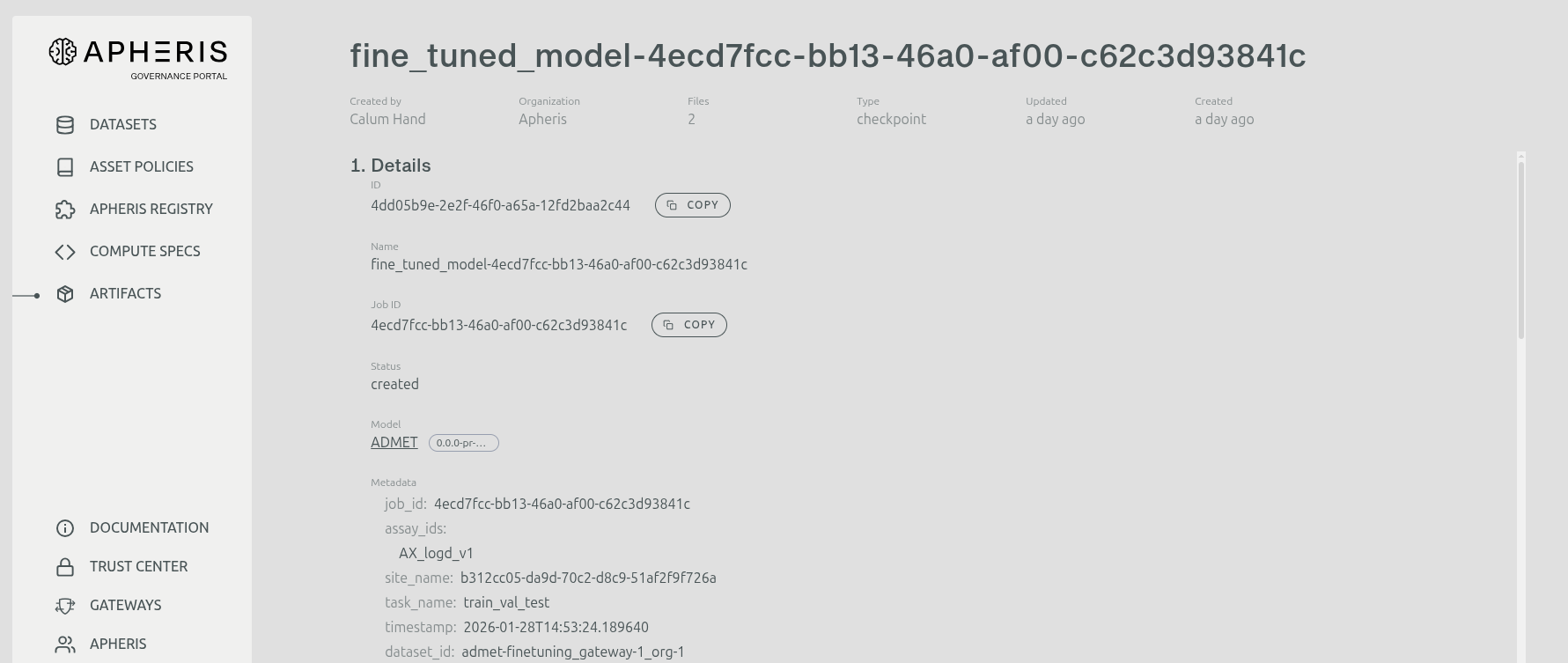
The artifact details page shows:
- Artifact details: Name, type, status, creation date
- Creator information: Who created the artifact
- Custom metadata: Any additional metadata stored with the artifact
- File list: All files attached to the artifact with their details
Downloading Artifact Files🔗
To download files from an artifact:
- Navigate to the artifact details page
- Scroll down to the Files section and locate the file you want to download in the file list
- Click the download button or copy the download link for that file
- The portal will fetch a pre-signed URL and initiate the download
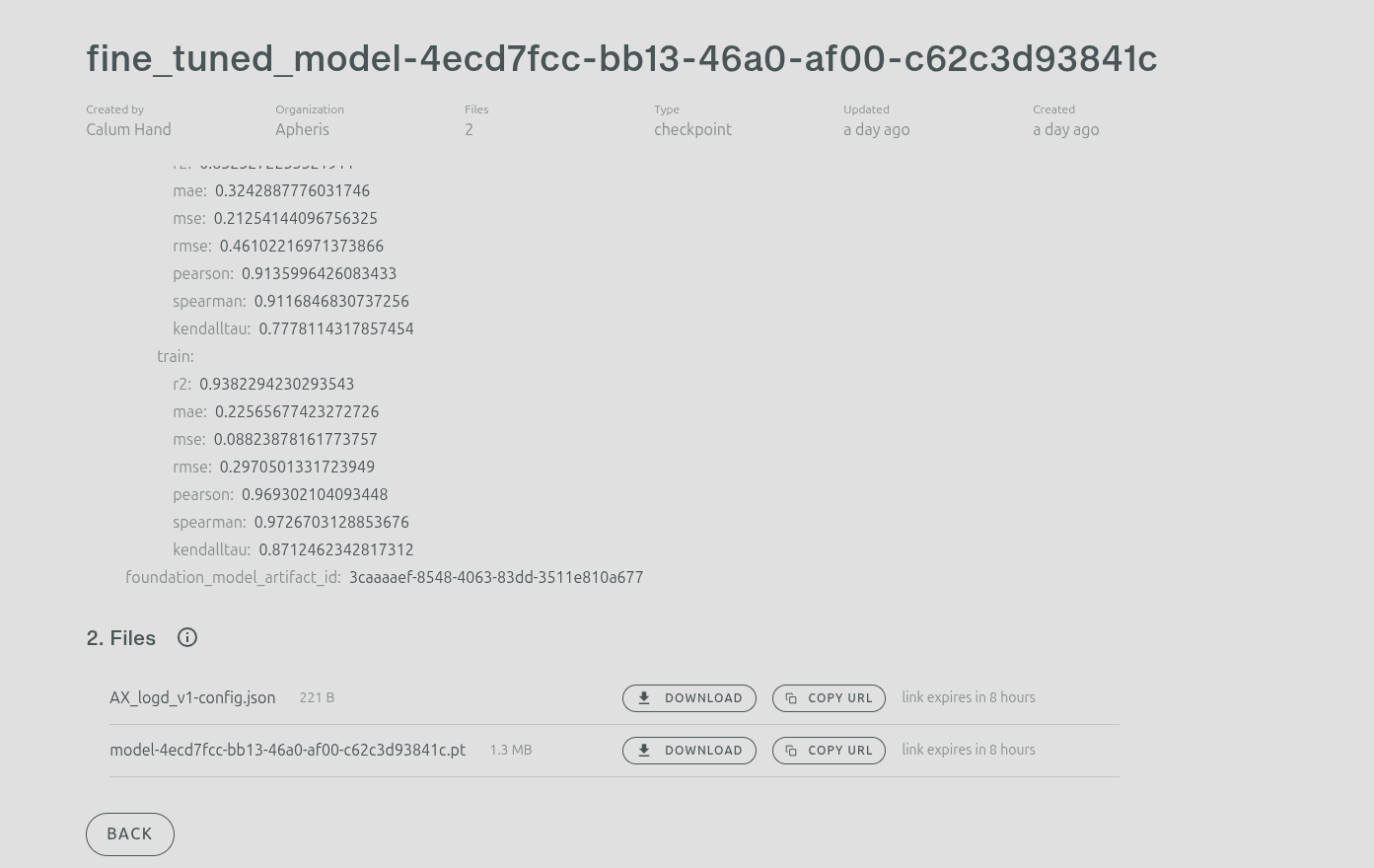
File Information:
Each file displays:
- File name: The name of the file
- Size: File size in bytes
- Expiration: Time remaining before the pre-signed URL expires
Example Workflow🔗
- Open Artifacts
- Filter by Shared by another organization
- Select an artifact to view details
- Download the files you need
Notes🔗
- Pre-signed URLs are temporary and expire after a certain time
- Files must be in
completedstatus to be provided for download - Downloads are local only
Using Shared Artifacts in Computations🔗
Artifacts shared with you can be used as inputs in your computations:
- Note the Artifact ID from the artifacts list or details page
- Reference the artifact in your computation specification
- Access artifact files during computation execution via the SDK
See the Apheris Utils documentation for details on programmatic artifact access.
Troubleshooting🔗
Artifact Not Visible🔗
If you expect to see an artifact but don't:
- Verify access was granted to your email or organization
- Check with the artifact owner to confirm the grant
- Try refreshing the artifacts list
- Ensure you're logged in with the correct account
Cannot Download File🔗
If you can't download a file:
- Verify the file status is "completed" (not "pending")
- Check your internet connection
- Try refreshing the page and attempting again
- Contact support if the issue persists
Filter Not Working🔗
If filters don't seem to work:
- Clear all filters and start fresh
- Refresh the page
- Try different filter combinations
- Check if artifacts exist matching your criteria