Archived ApherisFold documentation
This page is part of the archived ApherisFold and Hub documentation. For Apheris Foundry, see the Foundry overview.
ApherisFold Application🔗
Welcome to the ApherisFold Application. This guide will walk you through the steps needed to deploy, configure, and begin using the application in your local or cloud environment.
Overview🔗
The ApherisFold Application allows you to predict the 3D structures of macromolecule complexes with an emphasis on protein–ligand, protein–protein, and antibody–antigen interfaces using OpenFold3 (OF3), Boltz-2, and Protenix.
Key capabilities include:
- Quick deployment to your local environment, private cloud, or on-premises infrastructure using Kubernetes
- Model prediction (for OF3, Boltz-2, and Protenix) with input validation, batch execution programmatically or via a scientist-friendly GUI with built-in visualizations (pLDDT, PAE, structure viewers)
- Affinity prediction for protein–ligand complexes, powered by the SandboxAQ affinity head (OF3) and Boltz-2's built-in affinity model
- Benchmarking to evaluate model performance against ground-truth structures with quantitative metrics
- Fine-tuning support for OpenFold3 deployments
System Overview🔗
Apheris has created Docker images for its models, built on open-source versions and equipped with an HTTP API wrapper for easy integration with third-party systems.
Models and Requirements🔗
OpenFold3, Boltz-2, and Protenix are included in the ApherisFold application. These models are large and can require 25GB of disk space or more. These models have been packaged by Apheris as Docker images and can be freely downloaded. The images can be pulled in advance if pulling from our repository is not an option for your environment. Please contact us for assistance with this process if needed.
We target the latest release from the respective model providers. To see which models and weights your deployment offers for prediction, open Workflows, select the structure prediction workflow, and review its model selector (see Models).
Recommended Hardware:
- Modern GPU with at least 48GB GPU memory and CUDA 13+ support (e.g. NVIDIA A100, H100, L40S, RTX 6000 and others). The minimum supported driver version is 580, as per NVIDIA's compatiblity documentation. You can find your current driver version by running
nvidia-smiin the terminal. In AWS, the G6e instance is an example of a cost-effective machine that supports OpenFold3. - At least 300GB of disk space
- Docker environment with Nvidia GPU drivers and the Nvidia Container Toolkit installed
Architecture🔗
The Apheris Hub operates as a coordinator over the models you deploy alongside it. It is deployed with the Kubernetes Helm chart, and models run through Foundry, which launches a workflow — one Kubernetes Job per request — that executes the selected model.
The Hub discovers available workflows and models from the workflow packages it ships with or that you mount: each package pins its images and publishes its task requirements, and the deployment's compute classes (workflow.resourcePolicy) decide where and with which limits its tasks run. GPU and CPU resources are managed by your cluster scheduler.
Foundry runs each prediction as a workflow whose GPU-backed step requests a full GPU only while it executes. Once the run completes, its Kubernetes Job and Pod are torn down and the GPU is released for subsequent runs.
You can submit multiple prediction queries at the same time; how many run concurrently depends on the available GPU capacity.
With OpenFold3, the first prediction query sent to a freshly started model service will take a bit longer than later queries because optimized GPU kernels are compiled on the fly during that initial request.
When a query is submitted, the input is provided in JSON format as specified in the Running prediction section below, and including any assets uploaded via the "assets" option. These are saved to the input folder specified during the deployment process (see Kubernetes Deployment (Helm Chart)).
Once prediction is complete, the model's predictions and any associated logs are written to the respective output folder and immediately viewable in the UI or accessible by your own external tooling.
Getting Started🔗
Deploy the ApherisFold Application🔗
Deploying the ApherisFold Application sets up the Apheris Hub along with enabled models, and configures storage for your data and results. The ApherisFold Application deploys to Kubernetes.
- Kubernetes Deployment (Helm Chart) - Deploy to Kubernetes using Helm
After installation, you can access the Apheris Hub from your web browser.
For step-by-step instructions, see the Troubleshooting Guide, which covers common operational problems and provides troubleshooting techniques to help identify, address, or confirm issues.
If you need help or encounter any issues, and the Hub is running, you can generate a Support ZIP archive directly from your web browser (Settings > Support > Download Support ZIP) or via the API. This archive includes system information, Hub configuration, and installed model versions that can help our team better understand your setup. Please email the Support ZIP file, along with a detailed description of your issue, to support@apheris.com.
Models🔗
The Apheris Hub works with multiple models (currently OpenFold3, Boltz-2, and Protenix) for the ApherisFold application. These models have been packaged by Apheris as Docker images and can be deployed in your environment. They come with a standardized query payload and can be called via an HTTP API. See Running Prediction for more information.
Fine-tuning is currently supported for OpenFold3 deployments. Boltz-2 and Protenix support inference only.
Which models appear in the Hub depends on the workflow packages and compute classes configured by your administrator. Open Workflows and select the structure prediction workflow to choose an available model and weight version. On a submitted job, expand the job details to review Execution versions, including the module version, model version (when recorded), and resolved image used for that run.
Mock Model🔗
When enabled, the Mock Model is useful for quickly exercising the full end-to-end ApherisFold workflow.
The Mock Model:
- Is designed to work with the built-in ApherisFold examples (and would fail on unseen inputs)
- Produces example results that are qualitatively similar to OpenFold3 outputs
- Results can be visualized and downloaded the same as any other model
- Does not require GPU resources
To enable the Mock Model, see the Kubernetes Deployment (Helm Chart) instructions.
Customizing Model Weights🔗
You can mount custom model weights into your deployment to use custom-trained or fine-tuned models. This is supported for OpenFold3, Boltz-2. Custom weights for Protenix are not currently supported.
Required Files🔗
Each model type expects specific files in the mounted weights directory:
OpenFold3:
of3_ft3_v1.pt(checkpoint file)
Boltz-2:
boltz2_conf.ckpt(confidence checkpoint)boltz2_aff.ckpt(affinity checkpoint)ccd.pkl(coordinate data)mols/(directory containing molecule definitions)
Directory Structure Examples🔗
Your weight files must be organized as follows:
OpenFold3:
weights_mount/
├── additional_weights.json
├── fed/
│   └── of3_ft3_v1.pt
└── fine-tuned/
    └── of3_ft3_v1.pt
Boltz-2:
weights_mount/
├── additional_weights.json
├── custom/
│   ├── boltz2_conf.ckpt
│   ├── boltz2_aff.ckpt
│   ├── ccd.pkl
│   └── mols/
│       ├── ATP.cif
│       ├── GTP.cif
│       └── ...
└── domain-specific/
    ├── boltz2_conf.ckpt
    ├── boltz2_aff.ckpt
    ├── ccd.pkl
    └── mols/
        ├── ATP.cif
        ├── GTP.cif
        └── ...
Configuration Methods🔗
There are two ways to configure custom weights for your models:
Choose One Method
These methods are mutually exclusive. Choose either the configuration file method or the environment variable method, not both. If both are configured, the environment variable (APH_AVAILABLE_WEIGHTS) takes precedence.
Method 1: Using a Configuration File🔗
This method uses a JSON configuration file that you mount into the container. The file path is specified using the APH_WEIGHTS_CONFIG_FILE environment variable.
Deployment-managed weights
For Hub-managed checkpoint deployment, dynamic discovery from the shared weights directory is the primary path. APH_WEIGHTS_CONFIG_FILE and APH_AVAILABLE_WEIGHTS remain supported for backward-compatible manual weights metadata.
When to use:
- You have multiple weight sets with complex configurations
- You want to manage weights configuration separately from deployment configuration
- You need to update weights metadata without redeploying
How it works:
- Create a JSON file with your weights configuration
- Mount the file into the container (via ConfigMap in Kubernetes, or volume mount in Docker)
- Set the
APH_WEIGHTS_CONFIG_FILEenvironment variable to point to the file path inside the container
Method 2: Using an Environment Variable🔗
This method provides the weights configuration directly as a JSON string in the APH_AVAILABLE_WEIGHTS environment variable.
When to use:
- You have a simple configuration with one or two weight sets
- You want all configuration in one place (e.g., Helm values)
- You prefer not to manage separate configuration files
How it works:
- Format your weights configuration as a JSON array
- Set the
APH_AVAILABLE_WEIGHTSenvironment variable with the JSON string - The model reads the configuration directly from the environment
JSON Configuration Format🔗
Regardless of which method you choose, the JSON structure is the same. The configuration should be a JSON object with an available_weights array, where each weight entry contains:
model_type(required): Model identifier -"openfold3"or"boltz2"version(required): Version identifier in semver format (e.g.,"3.0.0-federated"). Models that derive from the OpenFold3-preview architecture are required to start with3.0.0, whereas those from the OpenFold3-release model must be versioned under4.0.0mounted_path(required): Absolute path inside the container where weight files are locateddescription(optional): Human-readable description of the weightsmodel_scope(optional but recommended): Capabilities exposed for that weight.inferencecovers prediction and benchmarking,finetuningcovers fine-tuning jobs, andaffinityadvertises affinity prediction support.model_version_id(optional): Hub model version identifier for compatibility checks - defaults to the current image's version idmodel_version_tag(optional): Hub model version tag for compatibility checks - defaults to the current image's version tag
Please see the example below for OpenFold3 custom weights:
{
    "available_weights": [
        {
            "model_type": "openfold3",
            "version": "3.0.0-federated",
            "description": "OpenFold Federated weights",
            "model_scope": ["inference"],
            "mounted_path": "/weights/openfold3/fed"
        },
        {
            "model_type": "openfold3",
            "version": "3.0.0-fine-tuned",
            "model_version_id": "openfold3:1.2.30",
            "model_version_tag": "1.2.3-openfold3-by-file",
            "description": "OpenFold Fine-Tuned weights",
            "model_scope": ["inference", "finetuning"],
            "mounted_path": "/weights/openfold3/fine-tuned"
        }
    ]
}
Each deployed model instance can expose one or multiple scopes, depending on what model and weights support. Supported scopes are inference for prediction and benchmarking, finetuning for fine-tuning jobs, and affinity for affinity prediction support. In practice, OpenFold3 deployments may expose inference, finetuning, and affinity, Boltz-2 deployments may expose inference and affinity, and Protenix deployments expose inference only. Custom weights can further narrow capabilities per weight through model_scope; omit affinity for weights that do not support affinity prediction.
For clarity, Hub-managed fine-tuned OpenFold3 deployments are currently an exception to the general OpenFold3 capability set above: when you deploy a checkpoint produced by the fine-tuning workflow, the resulting custom weight is structure-only and does not advertise affinity prediction support yet.
The Deployment Examples below illustrate how to set up each method in both Docker and Kubernetes environments. OpenFold3 is used in the examples, but the same principles apply to Boltz-2.
Kubernetes Deployment🔗
This section provides detailed steps for deploying custom weights in a Kubernetes environment using either configuration method.
Important
Ensure your weight files are organized following the structure shown in Required Files and stored in a location accessible by your Kubernetes cluster (e.g., PersistentVolumeClaim backed by EFS, NFS, or hostPath for testing).
Configure Helm Values🔗
Choose your configuration method:
Method 1: Configuration File🔗
Create a ConfigMap with your weights configuration:
apiVersion: v1
kind: ConfigMap
metadata:
  name: openfold3-weights-config
  namespace: apheris-hub
data:
  weights.json: |
    {
      "available_weights": [
        {
          "model_type": "openfold3",
          "version": "3.0.0-federated",
          "description": "OpenFold Federated weights",
          "model_scope": ["inference"],
          "mounted_path": "/weights/openfold3/fed"
        },
        {
          "model_type": "openfold3",
          "version": "3.0.0-fine-tuned",
          "description": "OpenFold Fine-Tuned weights",
          "model_scope": ["inference", "finetuning"],
          "mounted_path": "/weights/openfold3/fine-tuned"
        }
      ]
    }
Apply the ConfigMap:
kubectl apply -f weights-config.yaml
Update your Helm values.yaml:
models:
  instances:
    openfold3:
      deploy:
        image: quay.io/apheris/hub-apps:1.2.3-openfold3-by-file
        env:
          - name: APH_WEIGHTS_CONFIG_FILE
            value: /config/weights.json
        extraVolumes:
          - name: weights-storage
            persistentVolumeClaim:
              claimName: custom-weights-pvc
          - name: weights-config
            configMap:
              name: openfold3-weights-config
        extraVolumeMounts:
          - name: weights-storage
            mountPath: /weights
            readOnly: true
          - name: weights-config
            mountPath: /config
            readOnly: true
Method 2: Environment Variable🔗
Update your Helm values.yaml:
models:
  instances:
    openfold3:
      deploy:
        image: quay.io/apheris/hub-apps:1.2.3-openfold3-by-file
        env:
          - name: APH_AVAILABLE_WEIGHTS
            value: |
              [
                {
                  "model_type": "openfold3",
                  "version": "3.0.0-federated",
                  "description": "OpenFold Federated weights",
                  "model_scope": ["inference"],
                  "mounted_path": "/weights/openfold3/fed"
                },
                {
                  "model_type": "openfold3",
                  "version": "3.0.0-fine-tuned",
                  "description": "OpenFold Fine-Tuned weights",
                  "model_scope": ["inference", "finetuning"],
                  "mounted_path": "/weights/openfold3/fine-tuned"
                }
              ]
        extraVolumes:
          - name: weights-storage
            persistentVolumeClaim:
              claimName: custom-weights-pvc
        extraVolumeMounts:
          - name: weights-storage
            mountPath: /weights
            readOnly: true
JSON Formatting in YAML
When using the environment variable method, ensure your JSON is properly formatted within the YAML value: | block. Each line should be indented consistently.
Deploy with Helm🔗
Upgrade your Helm release with helm upgrade command.
Pod Restart Required
If you're adding custom weights to an existing deployment, you must restart the model pod for changes to take effect, for example for OpenFold3 use:
kubectl rollout restart deployment/hub-openfold3 -n apheris-hub
Verify Configuration🔗
Verify Environment Variables🔗
kubectl exec -n apheris-hub deployment/hub-openfold3 -- env | grep APH_
You should see either APH_WEIGHTS_CONFIG_FILE or APH_AVAILABLE_WEIGHTS set.
Check Volume Mounts🔗
kubectl exec -n apheris-hub deployment/hub-openfold3 -- ls -la /weights/openfold3/
Verify your weight directories are present:
drwxr-xr-x 2 root root 4096 Jan 15 10:00 fed
drwxr-xr-x 2 root root 4096 Jan 15 10:00 fine-tuned
Test Weights Endpoint🔗
Port-forward to the model service:
kubectl port-forward -n apheris-hub svc/hub-openfold3 8000:8000
Query the weights endpoint:
curl http://localhost:8000/weights
Expected response:
{
  "available_weights": [
    ...
    {
      "model_type": "openfold3",
      "version": "3.0.0-federated",
      "description": "OpenFold Federated weights",
      "model_scope": ["inference"],
      "mounted_path": "/weights/openfold3/fed"
    },
    {
      "model_type": "openfold3",
      "version": "3.0.0-fine-tuned",
      "description": "OpenFold Fine-Tuned weights",
      "model_scope": ["inference", "finetuning"],
      "mounted_path": "/weights/openfold3/fine-tuned"
    }
  ]
}
Using Custom Weights🔗
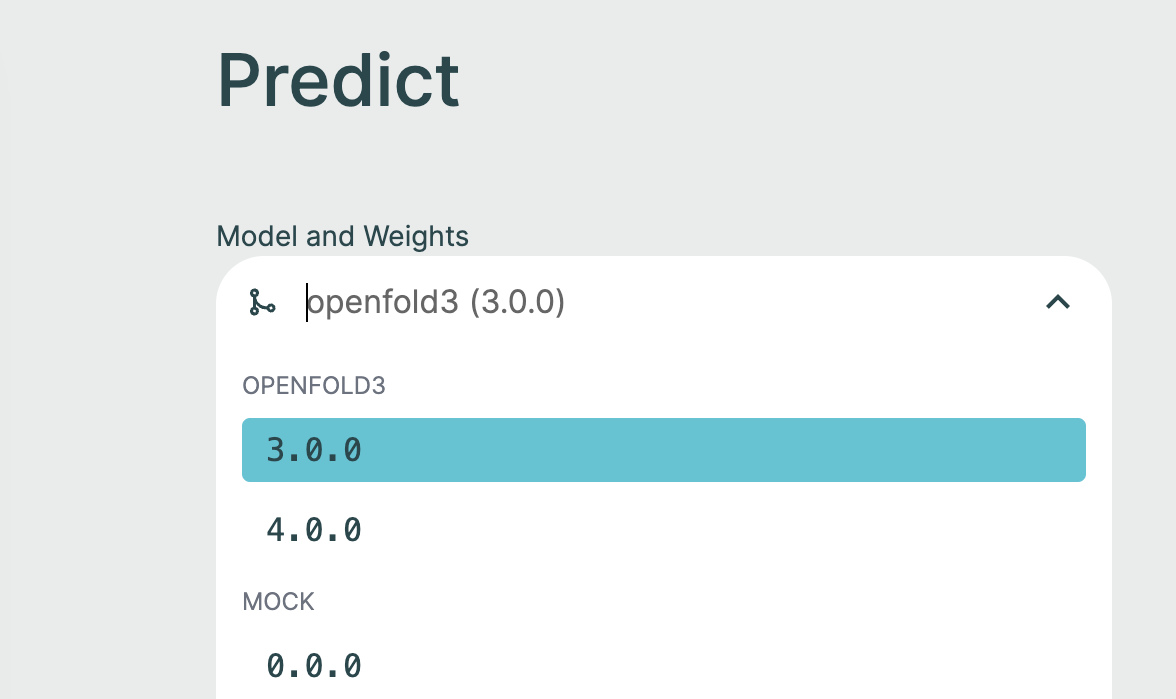
Once configured, custom weights appear in the Hub UI alongside default weights. When creating a prediction:
- Open Workflows and select the structure prediction workflow
- Select your model (OpenFold3 or Boltz-2)
- Select your custom weight version from the dropdown
When using the API, specify the custom weight version in your prediction payload:
{
    "id": "1",
    "inputPath": "input/assets",
    "outputPath": "output/results",
    "requestParams": {"queries": {...}},
    "modelName": "openfold3",
    "weightVersion": "3.0.0-federated"
}
Multiple Sequence Alignment (MSA)🔗
MSAs for ApherisFold can be provided either via pre-computed .a3m files, or by using a compatible MSA server implementation. For details on how the Hub generates alignments automatically, see MSA Service.
MSA server definitions are deployment-managed by administrators. In the UI, users can only select one of the configured servers, or disable MSA server usage and upload .a3m files manually.
Supported MSA server types are:
| Provider | Type identifier | Notes |
|---|---|---|
| ColabFold | colabfold |
Supports self-hosted deployments and public servers |
| NVIDIA NIM ColabFold | nvidia-colabfold |
Requires a deployed NVIDIA NIM MSA Search service; see NIM MSA Server Setup |
For configuration instructions, see:
| Platform | Server configuration | Custom headers |
|---|---|---|
| Kubernetes | MSA Server Configuration | MSA Server Headers |
Important
Any query that uses an MSA server may send protein sequences to that server. If sequences must stay inside your environment, use a self-hosted MSA server or upload pre-computed .a3m files and disable MSA server usage.
Configurable MSA Server🔗
MSA server definitions are configured by administrators at deployment time (Docker config.yaml or Helm values). End users cannot add, edit, or delete MSA servers in the UI.
MSA Request Timeout🔗
MSA request timeout is also deployment-managed (hub.msa.requestTimeout) and applies to backend MSA provider requests.
MSA Usage🔗
The MSA workflow depends on which feature you are using:
- Prediction: If MSA server usage is disabled, upload
.a3mfiles in the Query Builder. In this mode, no MSA server call is made for that query. For each protein chain, include an"msa_path": "filename.a3m"field in the query JSON. - Benchmark: If MSA server usage is disabled, attach
.a3mfiles to the benchmark structures before starting the benchmark. - Fine-tuning: Manual
.a3mfiles are attached to dataset structures.
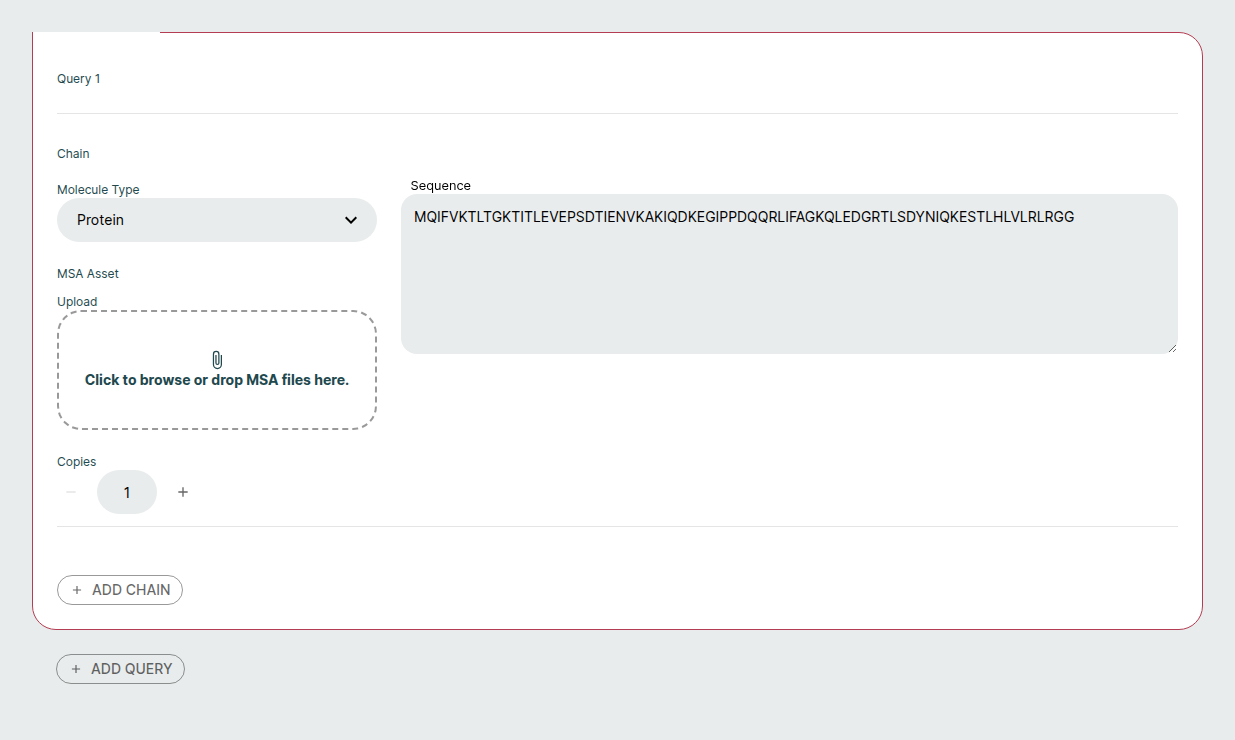
If MSA server usage is enabled in your settings, the Hub creates MSA jobs automatically for chains that do not have uploaded .a3m files. A prediction stays in pending status, a benchmark stays in preparing status, and fine-tuning dataset generation moves the fine-tuning run to preparing until those MSA jobs complete.
If all fine-tuning MSA jobs complete successfully, dataset generation resumes automatically and the fine-tuning run moves to validating. If any MSA job fails, the parent prediction, benchmark, or fine-tuning run fails, and the error reflects the underlying failed MSA job. For benchmarks and fine-tuning runs, the details view keeps that MSA preparation failure visible after reload so you can still inspect the affected query, chain, and error message.
Users can also opt out in Settings and re-enable later by selecting one of the administrator-configured servers.
See also:
- Running Prediction for examples using uploaded MSA files
- Benchmarking for benchmark structure uploads
- MSA Service for prediction, benchmark, and fine-tuning MSA behavior
Affinity Prediction🔗
ApherisFold supports predicting the binding strength between a protein and a small-molecule ligand. The output is a Predicted Affinity value — a pAffinity score (−log₁₀ of the half-maximal binding concentration in µM), where higher values indicate stronger predicted binding. For the currently available models (Boltz2 and the SandboxAQ head for OpenFold 3), this has been trained on a mixture of different assay readouts including pKi/pKd/pIC50/pAC50.
Affinity prediction is available on the Predict page only and applies to protein–ligand queries with a single protein and at least one ligand. It is not available on the Benchmark page.
Supported Models🔗
Affinity prediction is model-specific: each affinity head is trained on embeddings from a particular structural model and cannot be used interchangeably.
| Model | Affinity support | Output |
|---|---|---|
| OpenFold3 Preview 1 (v3.0.0) | SandboxAQ affinity head | Single Predicted Affinity value |
| Boltz-2 | Built-in affinity model | Predicted Affinity ±delta and Binding Probability ±delta |
| Protenix | Not supported | — |
Note
Affinity prediction is only available for OpenFold3 weights that advertise the affinity scope. Hub-managed fine-tuned OpenFold3 checkpoints do not carry over affinity support. See Deploying Fine-Tuned Checkpoints for details.
Enabling Affinity Prediction🔗
When you select a co-folding model and weights that support affinity prediction, an Affinity enabled pill appears in the model selection dropdown. No additional configuration is needed — affinity runs automatically alongside structure prediction for eligible queries.
If the selected weights do not support affinity, no pill is shown and affinity prediction is not performed.
Chain Selection🔗
How the protein and ligand chains are selected for affinity depends on your query composition:
- 1 protein + 1 ligand: Affinity is calculated automatically with no additional input required.
- 1 protein + multiple ligands: A radio button appears on each ligand chain. Select the ligand to calculate affinity for. The first ligand is selected by default; only one ligand can be selected at a time.
Note
Affinity chain selection controls are only shown when at least one protein and at least one ligand are present in the query. Queries without a protein–ligand pair (e.g. protein-only or ligand-only) do not display affinity options.
Affinity Results🔗
When affinity prediction runs successfully, the results are surfaced in several places:
- Results table: A Predicted Affinity column appears next to each query's structural metrics.
- Chains section: The Predicted Affinity value is shown alongside the corresponding ligand chain.
- Downloaded metrics file: Affinity values are included in the downloadable results.
For Boltz-2, the results table includes two additional columns: Predicted Affinity ±delta and Binding Probability ±delta. The binding probability is a 0–1 score indicating whether the ligand is predicted to bind at all.
For OpenFold3, a single Predicted Affinity value is returned with no delta.
Caveats🔗
- A high Predicted Affinity score does not guarantee a correct binding pose. The affinity head uses structural embeddings as input and is not a direct proxy for pose quality.
- Prediction quality is best for systems similar to the model's training distribution (PDB-like structures). Confidence decreases for out-of-distribution inputs.
- Affinity fine-tuning to improve predictions for your specific chemical series is planned for a future release.
Running Prediction🔗
Running prediction can be done via the UI or the Hub API. Here, we cover running prediction using the UI.
Navigation and workflow selection🔗
The Hub opens on Jobs, where you can track submitted workflow runs. Select Workflows in the navigation or at the top of the page to start a new run. On small screens, open the navigation menu to switch between Jobs and Workflows.
Workflow cards describe their scientific purpose, input, output, and number of steps. Open the structure prediction workflow (workflow ID predict) to configure a prediction. The workflows available in your deployment depend on your administrator's workflow exposure settings.
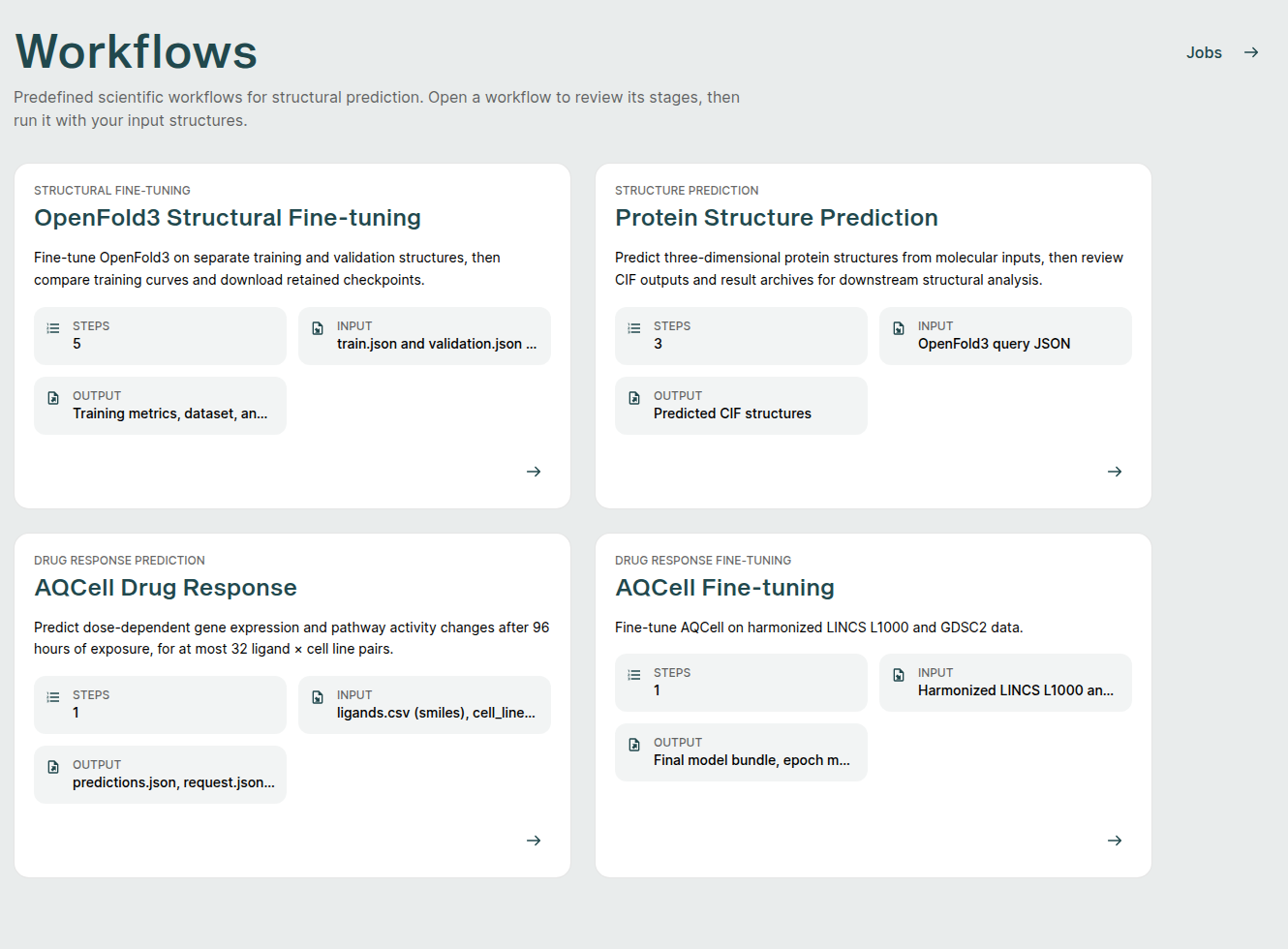
A workflow marked CLI only still has a details page with its workflow graph and command snippets, but no Hub input form or submit controls. Follow its command snippets to run it using the CLI instead.
Name and additional tags🔗
The Metadata section contains optional Name and Additional tags fields. You can submit without filling either field. If no name is supplied, the job ID identifies the run; when a name is supplied, the ID remains visible beneath it on Jobs and on the job detail page. Press Enter to add each tag. Tags help you find related jobs later.
Choose your model and weight version, then configure the input below.
Query Builder🔗
It is possible to form a prediction query using the graphical Query Builder and the JSON Queries Editor.
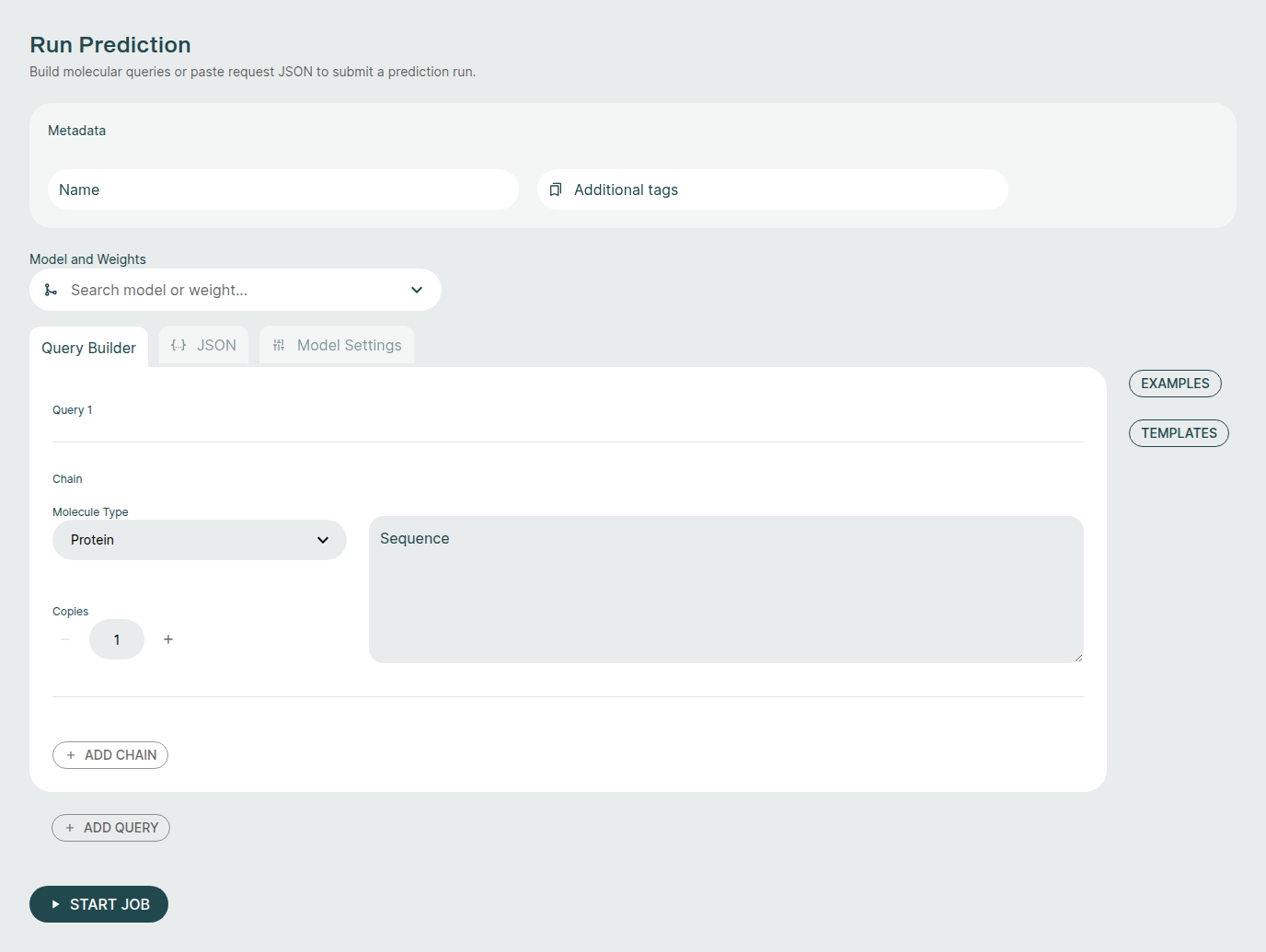
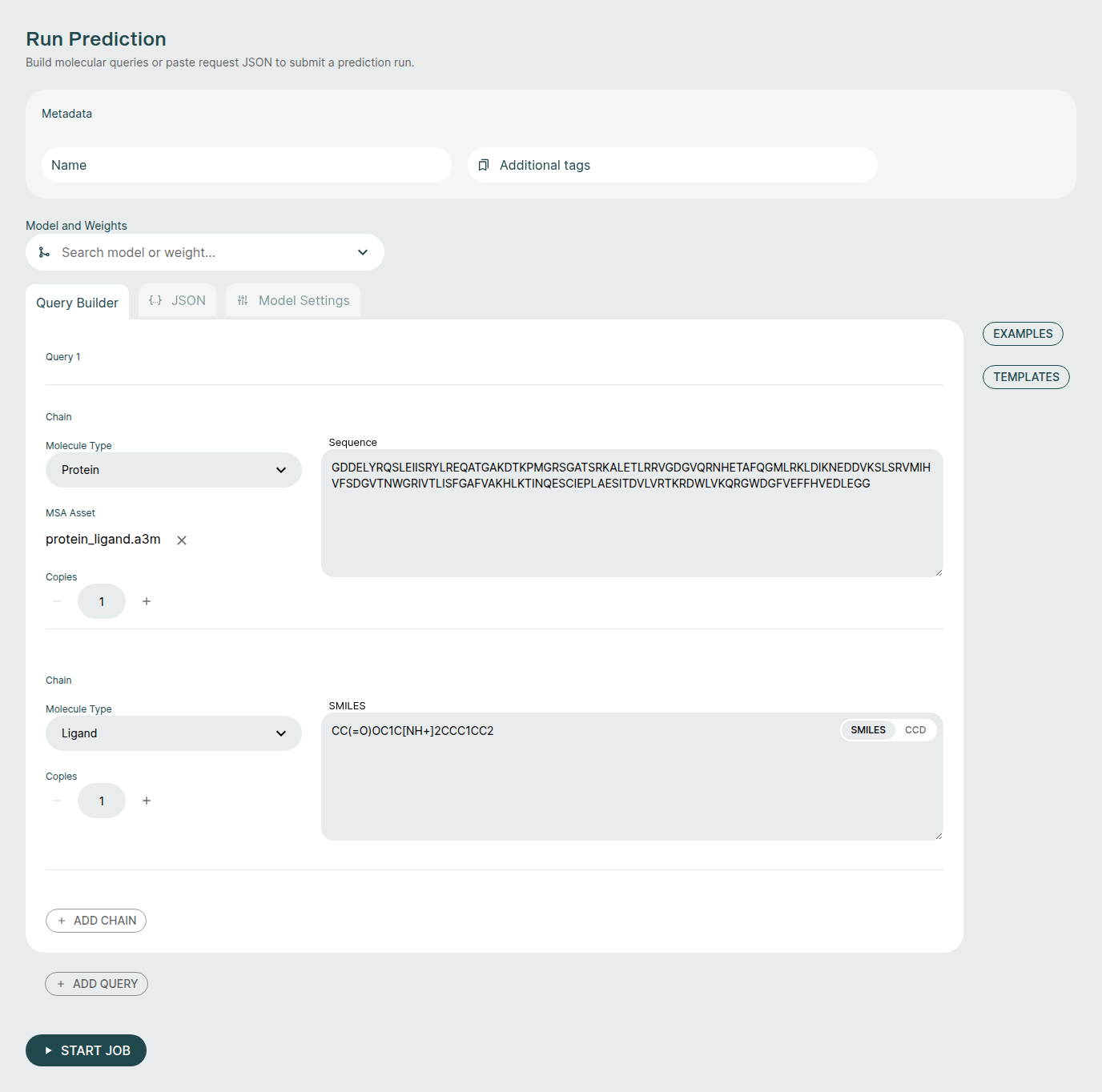
You can add to and adjust the query to fit your needs. It is possible to make changes as well as add additional components or chains to the query.
Use Examples to load a built-in sample query. Templates attaches optional CIF templates for supported models; see Foundry prediction templates for model support and configuration.
Here are some notable ways to configure a query:
- Molecule Type: Select between Protein, Ligand, RNA, and DNA. There are some type-specific features such as the ability to use SMILES vs CCD code for ligands. You can specify multiple ligands either through separate components with different identifiers, or by separating them with
.as part of one SMILES string, e.g.CCCC.CO. Note that this approach will not result in successful comparisons to attached ground-truth structural data, since this relies on each ligand being assigned a unique chain identifier in both the predicted and attached structures. - Duplicate Chain: Hover anywhere over a chain section to reveal Duplicate and Delete beside its heading. Duplicate appends an independently editable chain with the same inputs, including its MSA reference. It remains available for the only chain; Delete is hidden because each query must contain at least one chain. Repeated chains are shown as separate sections rather than a Copies counter.
- Add Chain: Adds an empty chain to the query. Chains are numbered sequentially in the Query Builder.
- Add Query: Adds a new query to the request. Hover over a query heading to reveal Duplicate and Delete. Duplicate appends an independently editable query with all its chain inputs and pocket settings. You can delete the only query and use Add Query to start again; a request needs at least one query before submission.
Load Examples > Protein Ligand to populate the form with the MCL1 protein sequence, its MSA file, and the Aceclidine ligand described in Examples.
JSON Queries Editor🔗
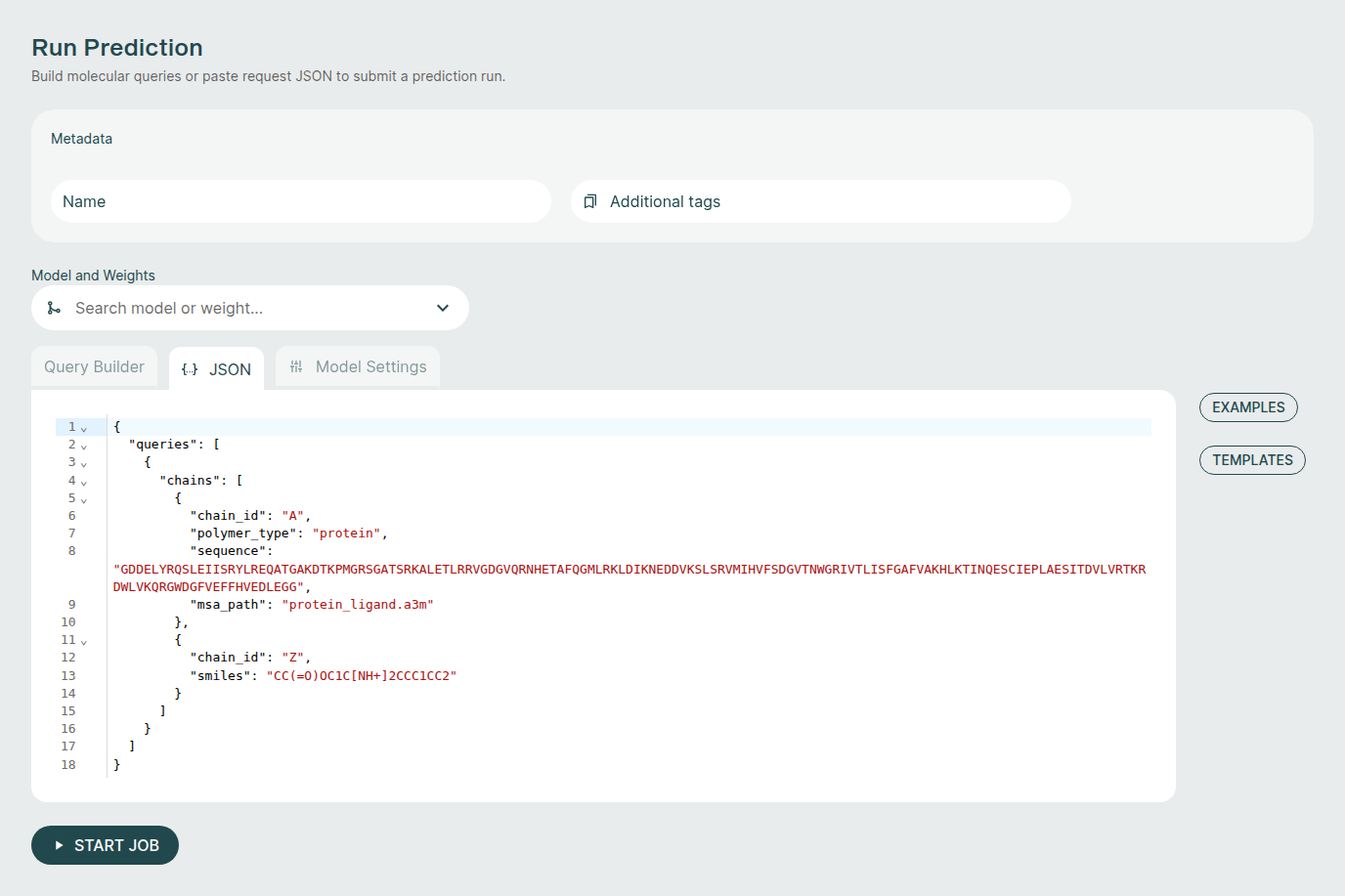
The JSON Queries Editor view is considered an advanced view and it is recommended to instead use the Query Builder to form new queries. The queries made via the Query Builder are reflected in the JSON Editor view but not all changes in the JSON Editor will be reflected back to the Query Builder.
For advanced users, the JSON Editor offers many convenience features such as syntax highlighting, keyword auto-completion, and data type validation.
The advanced editor is available on the JSON tab of the structure prediction form. After selecting Examples > Protein Ligand, switch to JSON to see the same protein sequence, MSA reference, and ligand SMILES as a request payload.
Tags🔗
Add optional tags in Metadata > Additional tags before submitting. Query names identify the individual structures in a request; they are not automatically added as job tags.
You can change a job's name or tags later using Edit in its job details, then Save. These edits change the job metadata, not its scientific inputs or existing outputs.
Examples🔗
The ApherisFold application comes with examples to help with getting started. Each of these examples can be run across all models. These can be used as starting templates for your queries or as a simple way to evaluate the full workflow.
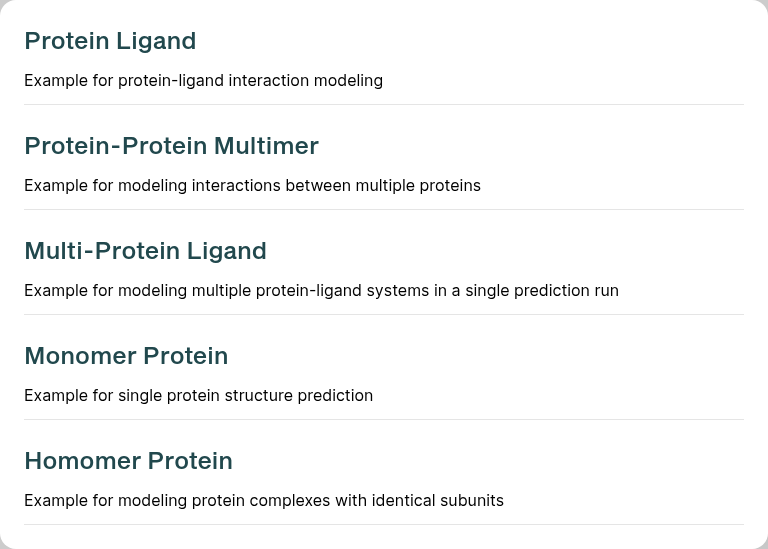
The examples provide MSA files and do not need a MSA server to run. The examples can also be used with configured MSA servers, as described in Multiple Sequence Alignment (MSA).
Below we provide a bit more detail on each example:
- Protein Ligand: The simple use-case of co-folding a small molecule with a single protein chain. The protein chain corresponds to the sequence of MCL1, and the small molecule is Aceclidine.
- Protein-Protein Multimer: Hemoglobin is an example of a query consisting of a multimer of protein chains, with no ligand present.
- Multi-Protein Ligand: A single query consisting of multiple sub-queries. In this case, MCL1 is co-folded with two different ligands (Aceclidine and 1-benzothiophene-2-carboxylic acid).
- Monomer Protein: A single protein chain, Ubiquitin.
- Homomer Protein: A dimer of identical protein chains, in this case the GCN4 Leucine Zipper.
Assets and MSA files🔗
Use the MSA Asset control on a polymer chain to upload an .a3m file or select an already uploaded alignment. Uploaded assets must be referenced by the appropriate chain in the request. The JSON tab reflects those references in the model's request format.
For automatic alignment generation, select a deployment-configured MSA server as described in Multiple Sequence Alignment (MSA).
Model Settings🔗
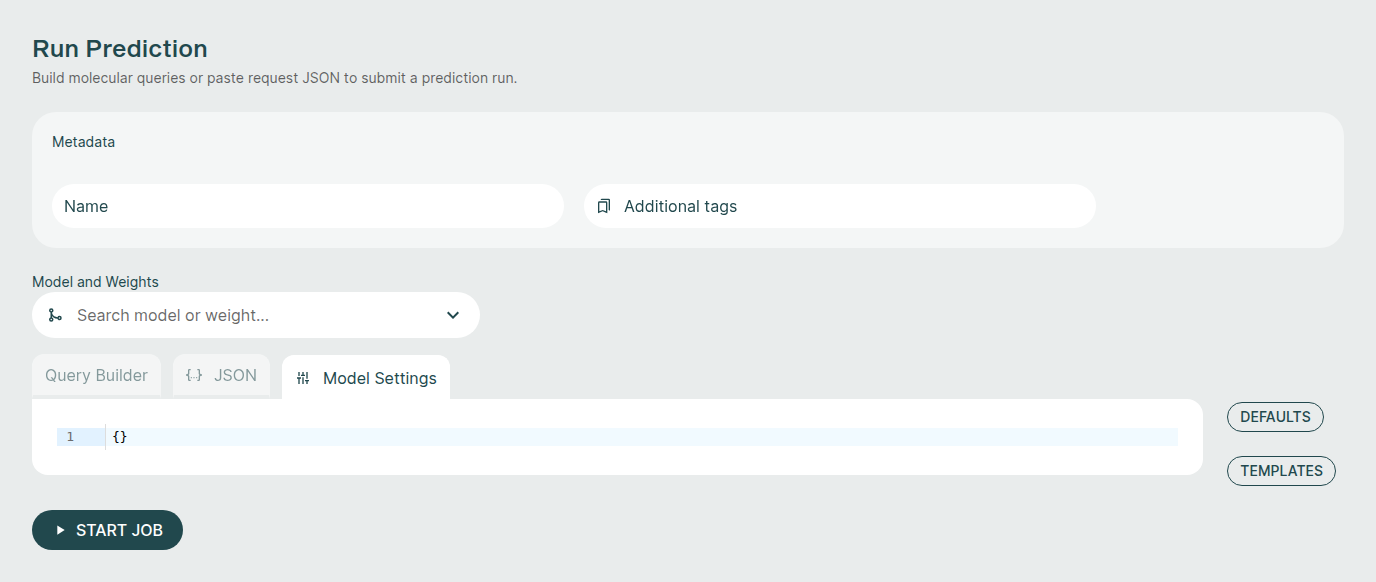
Some models have additional model-specific settings that can be configured such as diffusion samples. These can be changed on the Prediction screen by selecting the "Model Settings" tab at the top.
You can click the "Defaults" button to see the available model settings and make changes. Available settings depend on the selected model; without a selected model, the editor can show an empty object ({}).
Results Management🔗
One submission, containing one or multiple queries, creates one workflow job. After a successful submission, the Hub opens that job's detail page directly, where you can track progress, review results, and download files. Validation or submission errors keep you on the input form so you can correct them.
Open Jobs to return to all submitted jobs. Concurrent execution depends on your deployment's available compute resources.
Request Search🔗
The Jobs table shows Workflow, Job, Model (with its weight version when available), Tags, Status, Created, and Duration. The Job column shows the optional name and the job ID, or just the ID for unnamed jobs. Missing model, tag, or duration information is shown as -.
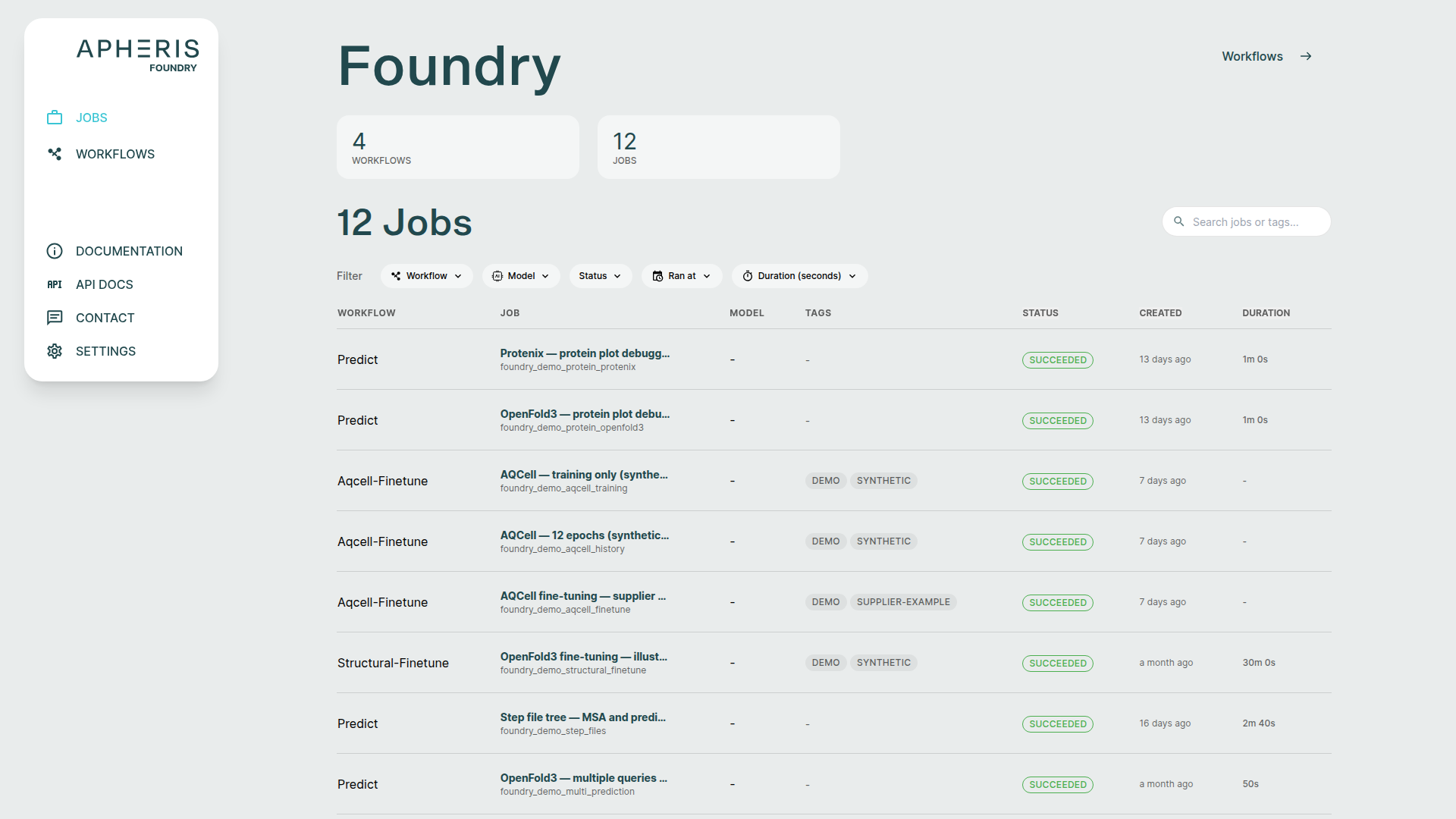
Use Search jobs or tags... to search by job ID, name, or tag. Combine this with the Workflow, Model, and Status filters, the Ran at date range (which filters the job's creation time), or Duration (seconds) range. The Model filter distinguishes weight versions. Sort using the Status, Created, or Duration column headings; the date and duration filter menus also offer sorting. Reset search & filters clears the search, filters, and sorting.
Created respects the Settings > Time stamps preference: relative time (for example, "12 hours ago") or a calendar date and time. Hover over a relative timestamp to see its calendar time. Calendar times use the browser's local timezone. Duration is separate from status: it is shown for finished jobs, measured from the start time (or creation time if no start time was recorded) to the finish time.
Request Status🔗
Jobs display the following statuses:
- Pending: submitted and waiting to run.
- Running: execution has started.
- Succeeded: execution completed successfully.
- Failed: execution failed; open the job details to inspect its error and logs.
- Cancelled: execution was cancelled.
Select a row to open the job detail page. Expand the job details to inspect execution versions, workflow steps, files, and logs. Active Kubernetes jobs offer Cancel job, with a confirmation dialog.
Reuse a Request in a New Prediction🔗
Download the original request JSON from the job's workflow-step files, then open a new structure prediction workflow and use its JSON tab to enter the request. Reattach any referenced assets and review the model, weight, settings, name, and tags before submitting. This creates a new job without modifying the original run.
Results Deletion🔗
Completed, failed, and cancelled jobs offer Delete job in the expanded job details under Danger zone. Deletion requires confirmation. Download any files you need to retain before deleting a job.
Analyzing Results🔗
The ApherisFold application comes pre-packaged with specialized analysis tools to support analyzing prediction results within the UI.
Prediction metrics🔗
The Predictions table lists the structures produced by the job, with seed and sample columns when available. Select a structure to update the viewer. Metric columns appear when supplied by the model, including pLDDT, pTM, ipTM, affinity or binding probability, and reference-comparison metrics such as RMSD or lDDT. Missing metric values are shown as —; not every model or prediction supplies every metric. Confidence scores do not by themselves establish biological correctness.
Downloading files🔗
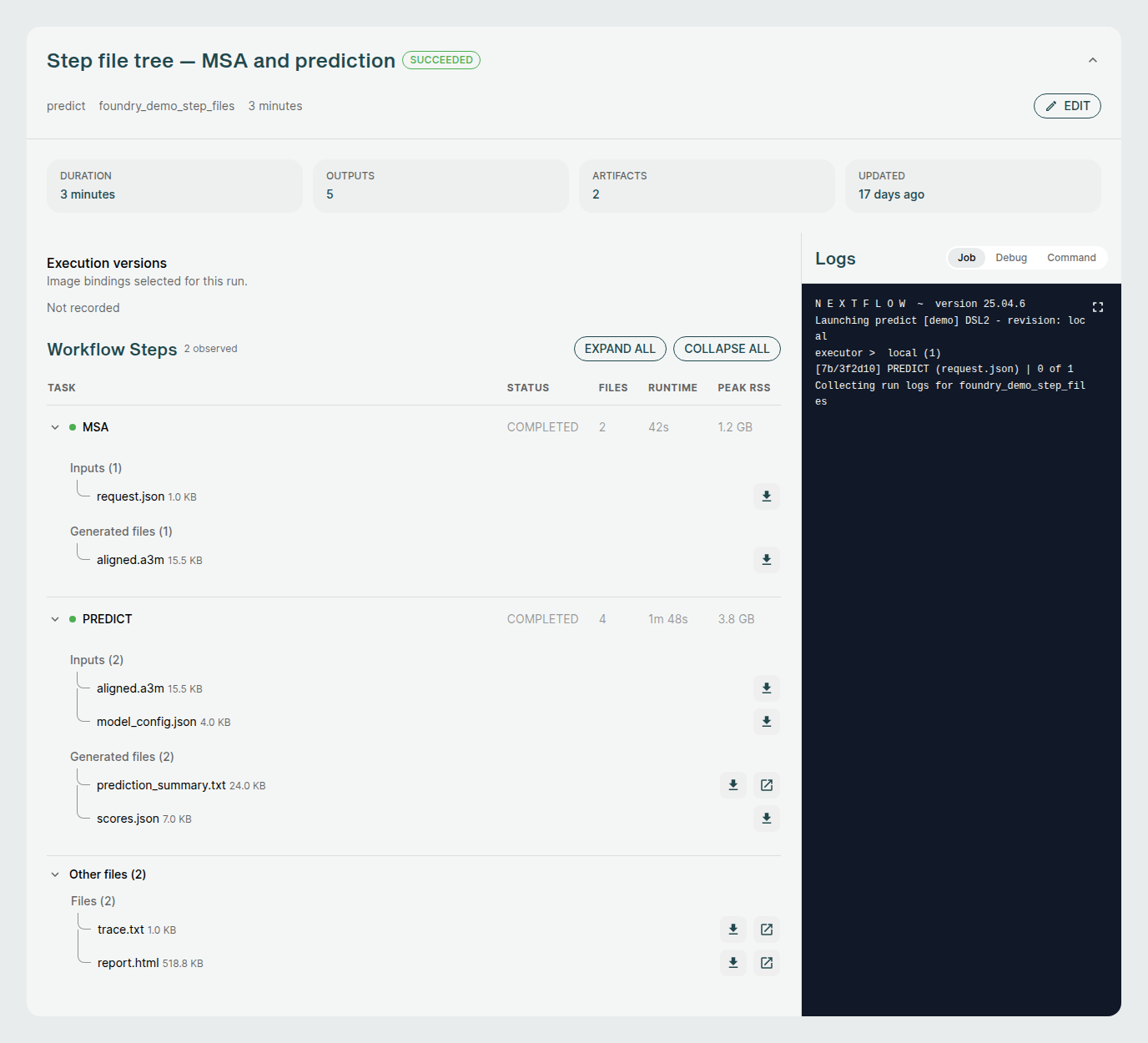
Expand the job details and find Workflow Steps. Select a task row to show its files, or use Expand all. Files are organized into Inputs and Generated files, with nested directories preserved; files not associated with an observed task appear under Other files. Use the download icon next to an individual file to save it. Available outputs depend on the workflow and model, and can include CIF structures, score JSON, result manifests, and archives produced by the workflow. Downloading one file does not download every prediction or the whole job.
Result visualizations🔗
Each of these visual components serves a specific purpose in interpreting co-folding predictions:
- 3D viewer: Understand overall fold and domain organization
- PAE/PDE: Assess inter-residue or inter-chain confidence
- pLDDT plot: Gauge per-residue reliability
- Sequence section: Review input-output fidelity and interpret ligand participation
The structure viewer, Predictions table, and Chains section share the selected prediction. PAE/PDE and pLDDT views are shown when the corresponding confidence data is available.
3D Structure Viewer (Left Panel)🔗
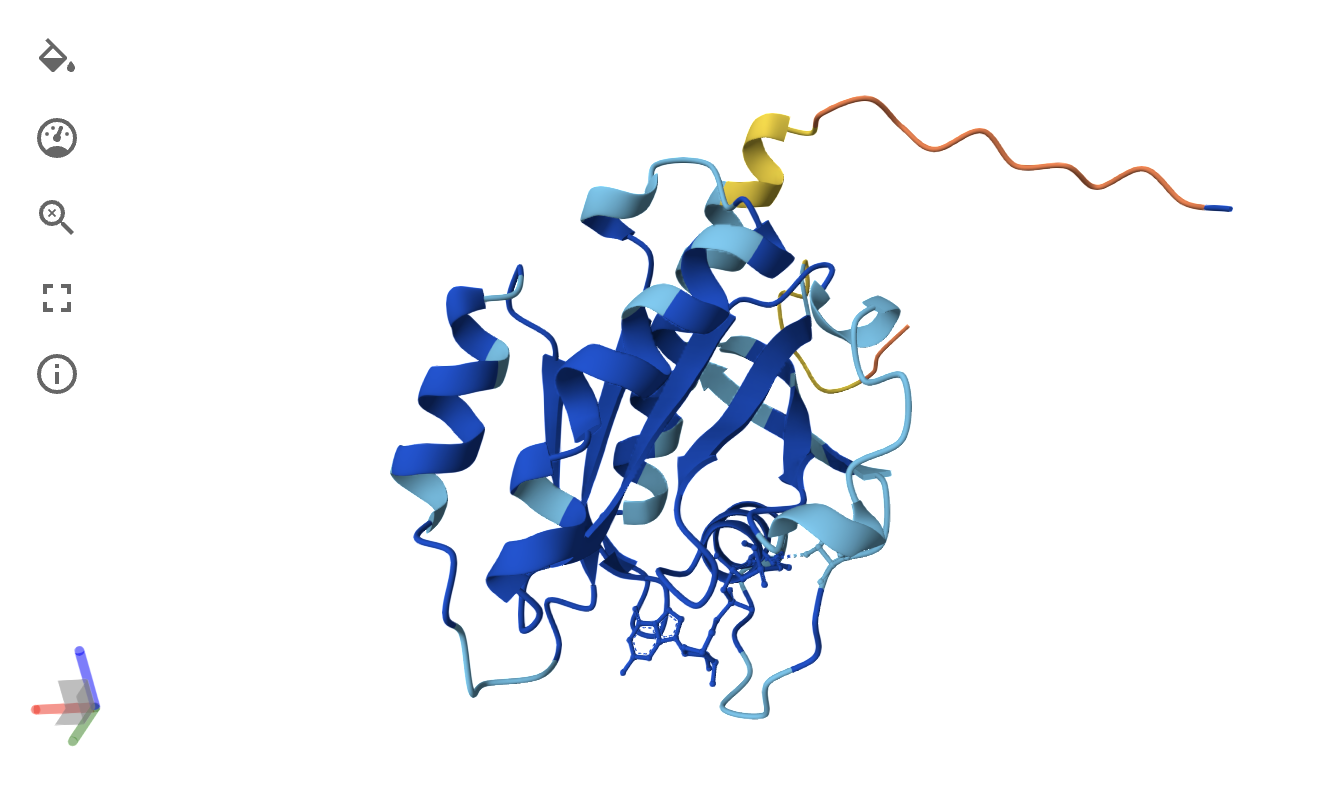
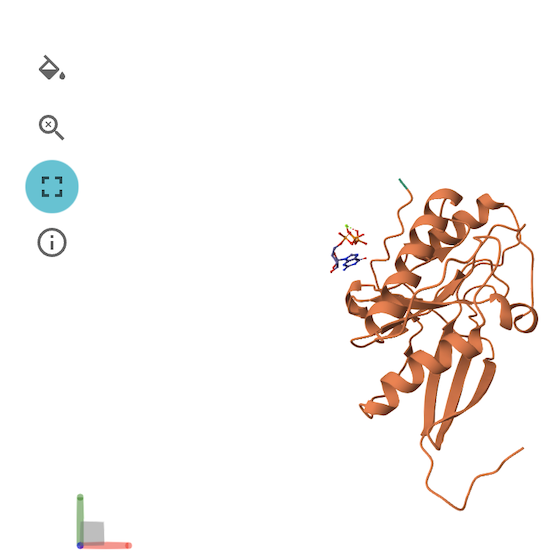
This panel displays the 3D atomic structure of the predicted protein or protein-ligand complex. The cartoon representation emphasizes the secondary structure elements (helices, sheets, loops).
For more details on how to use the 3D Structure Viewer, please see this page. Note that not all of the operations are applicable to ApherisFold.
Viewer Color Coding🔗
The structure is colored based on per-residue pLDDT scores, which indicate the model's confidence in the predicted atomic positions. The scale typically follows:
- Blue: Very high confidence (pLDDT > 90)
- Green: Confident (70–90)
- Yellow/Orange: Low confidence (50–70)
- Red: Very low confidence (< 50)
This can be helpful for visualizing local and global structure quality, identifying disordered or uncertain regions, and verifying expected fold topology.
PAE / PDE Matrix (Right Panel)🔗
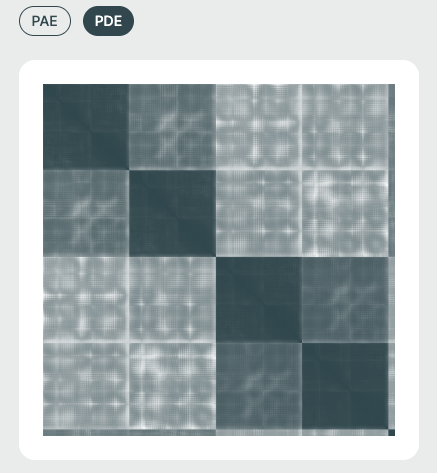
The Predicted Aligned Error (PAE) or Predicted Distance Error (PDE) matrices visualize the model's expected error in positioning residue pairs relative to one another. This is essential for interpreting inter-domain and inter-chain interaction confidence and is especially relevant in multi-chain or protein-ligand complexes.
- PDE: (specific to Boltz-2) is a measure of the uncertainty of the model in the distance between two residues/ligand atoms in the prediction, which is useful for uncertainty-aware modeling.
- PAE: further captures the uncertainty of the model in the relative orientation, in addition to the distance, of pairs of residues/ligand atoms in the prediction. For further reading, there is an excellent visualization created by the European Molecular Biology Laboratory (EMBL) on this guide.
Both of these are most easily visualized as a heat map, where each axis corresponds to sequential Amino Acid/DNA/RNA residues or ligand atoms.
Matrix Color Coding🔗
Darker cells imply lower predicted error (higher confidence), while lighter regions suggest areas of structural uncertainty.
pLDDT Plot🔗
This line graph shows the pLDDT score per residue, providing a quick global overview of prediction confidence. It's ideal for identifying low-confidence loops or disordered regions and useful for downstream filtering (e.g., in docking or dynamics simulations).
- X-axis: Residue index across all chains
- Y-axis: pLDDT score (0–100)

Full-Screen Molecular Viewer🔗
The molecular viewer can be maximized to occupy most of the screen space for detailed structural inspection. In full-screen mode, the 3D viewer, PAE/PDE plot, and sequence bar are displayed together to provide a comprehensive view of the model. Each component can be minimized or expanded individually as needed, while the 3D viewer remains as the main background element for structure visualization.
Chains Sequence Display🔗
This part is helpful for verifying sequence input/output consistency. Ligand info is key for those focused on drug binding or active site modeling.
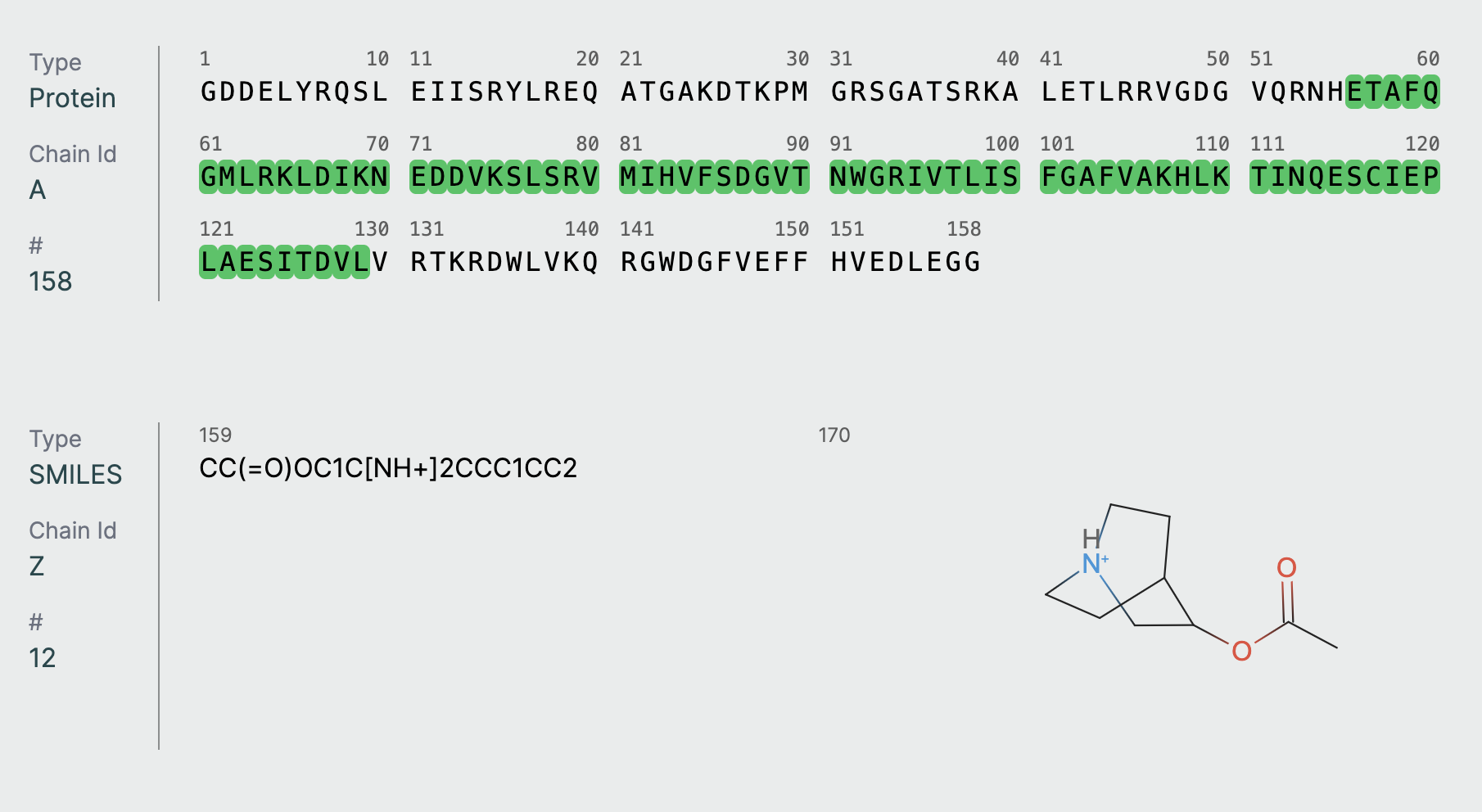
- Displays the full amino acid sequence used for the prediction.
- Includes chain identifiers (A, B, C, etc.).
Ligand Representation (SMILES)🔗
If a ligand is present (as in co-folding), it is shown in SMILES format along with a 2D molecular rendering.
Support and Next Steps🔗
To get access to source code, troubleshoot deployment issues, or inquire about connecting to federated environments, please contact: support@apheris.com.